HPE IMC Installation and Upgrade Errors (and Fixes)
Fixes for common HPE IMC install and upgrade errors: .NET 3.5 source files not found, jdk folder in use, "Reading or Writing file failed", java-monitor configurations, and failed database connections.
This isn’t a step-by-step install guide. It’s a collection of problems I’ve hit while installing and upgrading IMC, and how I got past them.
Installing: .NET 3.5 “source files could not be found” #
On Windows Server 2012, IMC’s installer needs the .NET Framework 3.5 feature, which can fail to install because the source files can’t be found.
Mount the Windows Server ISO (here as D:) and run this from an elevated command prompt, changing the drive letter if needed:
Dism /online /enable-feature /featurename:NetFx3 /All /Source:D:\sources\sxs /LimitAccessUpgrading 7.0 to 7.1: “File being used” (jdk folder) #
File being used, please manually delete the following folder and try again: c:\Program Files\iMC\deploy\jdk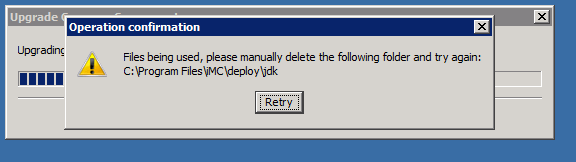
Don’t delete the jdk folder. One of its files is locked, and deleting the folder causes more problems. Instead:
- Cancel the upgrade.
- Open the Intelligent Deployment Monitoring Agent (IDM) and turn off IMC’s automatic start.
- Restart the IMC server and run the upgrade again.
You can also end any running java processes in Task Manager.
If you’ve already deleted it: copy c:\Program Files\iMC\deploy\jdk back from another IMC installation. If you don’t have one, install IMC on a local PC, copy the folder from there to the server, and retry the upgrade.
Importing software: “Reading or Writing file failed” #
When importing switch firmware into IMC 7.1 E0303:
Reading or Writing file failed. Possible causes: 1. File does not exist. 2.File name exceed max length.This was a database permissions problem. The customer had removed the SA permissions from the account I’d used to install IMC. Once the permissions were restored, imports worked again.
Patching 7.2 E0405 to E0405P05: “Can not find java-monitor configurations” #
While patching the base IMC Standard package, a Java pop-up reported a failure, and dmalog showed:
Can not find java-monitor configurations in deploy configs, but found in update configsThe modules being upgraded, with a local SQL Express database:
| Module | From | To |
|---|---|---|
| IMC Standard (Windows) | 7.2 E0405 | 7.2 E0405P05 |
| WSM | 7.2 E0502 | 7.2 E0502P05 |
| NTA | 7.2 E0401 | 7.2 E0401P03 |
| UAM | 7.2 E0403 | E0405, then 7.2 E0405P05 |
The cause turned out to be the UAM module, which was on an older release than the others. The fix:
- End all
javaprocesses in Task Manager. - Run the upgrade tool again, but upgrade each module individually. When IDM prompts to upgrade the base components first, cancel, then upgrade UAM to E0405.
- IDM then prompts to continue patching the IMC base, and the batch upgrade completes.
“Failed to connect to database” #
I hit this with a local SQL Express database. The fix that worked for me was in the HPE Community thread Failed to connect database.