802.1x Port Authentication on HPE Aruba ArubaOS-Switch
How to configure 802.1x EAP-RADIUS port authentication and MAC-based authentication on HPE Aruba switches, including Avaya phone bypass via LLDP-MED and Microsoft NPS configuration.
How to configure 802.1x port authentication on HPE Aruba ArubaOS-Switch, with MAC authentication for devices that do not support 802.1x (such as printers), and LLDP-MED bypass for VoIP phones.
This guide covers the switch configuration and the Microsoft NPS (Network Policy Server) setup for automatic EAP-RADIUS authentication of PCs, MAC authentication for printers, and voice VLAN bypass for Avaya handsets.
Prerequisites: Microsoft NPS installed and registered in Active Directory, a PKI in place with client certificates deployed to machines you want to authenticate via 802.1x.
Example topology #
| Role | VLAN |
|---|---|
| Authenticated users | VLAN 10 |
| Authenticated printers | VLAN 5 |
| Unauthorised / quarantine | VLAN 20 |
| Voice | VLAN 15 |
| RADIUS Server | 10.10.10.10 |
Windows client configuration #
The wired 802.1x authentication service is disabled by default on Windows. You must enable it — ideally via Group Policy for domain-joined machines.
For a single machine: open services.msc, find Wired AutoConfig, set Startup Type to Automatic, and start the service.

Switch configuration — RADIUS server #
Configure the RADIUS server address and shared secret. Ensure the key matches what you configure in NPS.
radius-server host 10.10.10.10 encrypted-key reallysecretkeyEnable EAP-RADIUS forwarding on switch ports:
aaa authentication port-access eap-radiusSwitch configuration — 802.1x #
Enable 802.1x authentication on ports 1-44. Specify the authenticated VLAN and the unauthenticated VLAN:
aaa port-access authenticator 1-44
aaa port-access authenticator 1-44 unauth-vid 20
aaa port-access authenticator 1-44 auth-vid 5
aaa port-access authenticator active
Switch configuration — MAC authentication #
Configure MAC-based authentication on printer ports (45 and 46 in this example):
aaa port-access mac-based 45,46
aaa port-access mac-based 45,46 unauth-vid 20
aaa port-access mac-based 45,46 auth-vid 10
Switch configuration — VoIP phone bypass #
LLDP-MED will place a phone into the voice VLAN automatically, bypassing authentication. Tag all ports in VLAN 15 and ensure voice appears in the VLAN config:
vlan 15
 name 'Voice'
 tagged 1-46
 voice
 exit
Combined 802.1x and MAC authentication #
To run both simultaneously, use the config below. Key restriction: unauth-vid must only appear on the MAC-based stanza — adding it to the 802.1x stanza causes an error:
aaa port-access authenticator 1-44
aaa port-access authenticator 1-44 auth-vid 10
aaa port-access authenticator 1-44 quiet-period 30
aaa port-access authenticator 1-44 tx-period 2
aaa port-access authenticator 1-44 supplicant-timeout 2
aaa port-access authenticator 1-44 server-timeout 10
aaa port-access authenticator 1-44 max-requests 3
aaa port-access authenticator 1-44 client-limit 2
aaa port-access mac-based 1-44
aaa port-access mac-based 1-44 addr-limit 2
aaa port-access mac-based 1-44 logoff-period 86400
aaa port-access mac-based 1-44 quiet-period 30
aaa port-access mac-based 1-44 server-timeout 10
aaa port-access mac-based 1-44 auth-vid 10
aaa port-access mac-based 1-44 unauth-vid 20
aaa port-access 1-44 controlled-direction in
aaa port-access authenticator active
Microsoft NPS configuration #
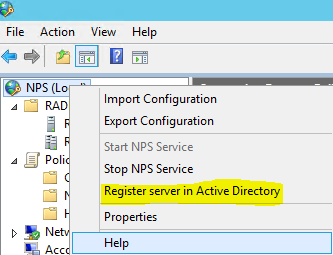
Register NPS in Active Directory:
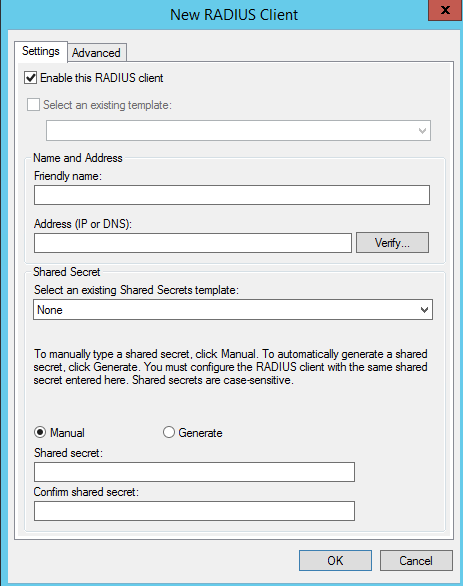
Add each switch as a RADIUS client, matching the shared secret from the switch config: